How to update your vendor branding
You can update the branding that you have for your vendor profile.
This is also the default branding used for your emails from your site.
The details you can update are as follows:
- Logo for your branding (Logo will be placed on a white background so if using a png keep this in mind)
- Primary branding colour (can use our colour picker or hex code)
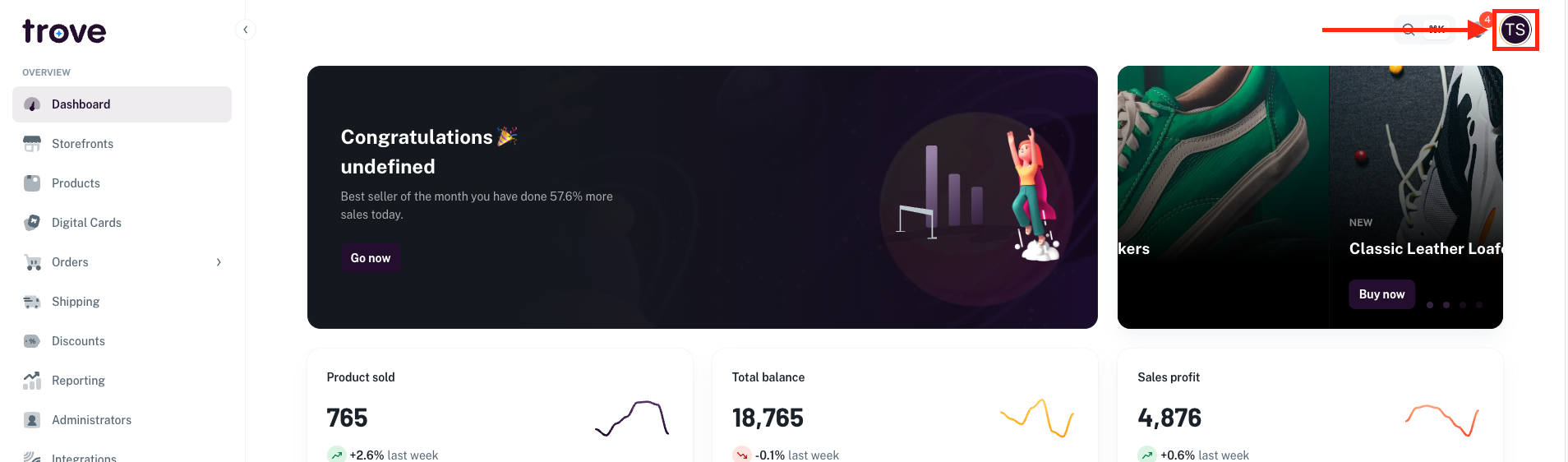
To do the update, head to your profile icon in the top right of the page
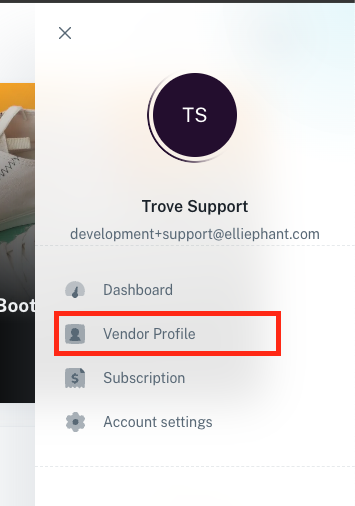
In the dropdown menu select "Vendor Profile"
On this page you will be pre loaded to the "General" tab which will include your logo, name and primary colour
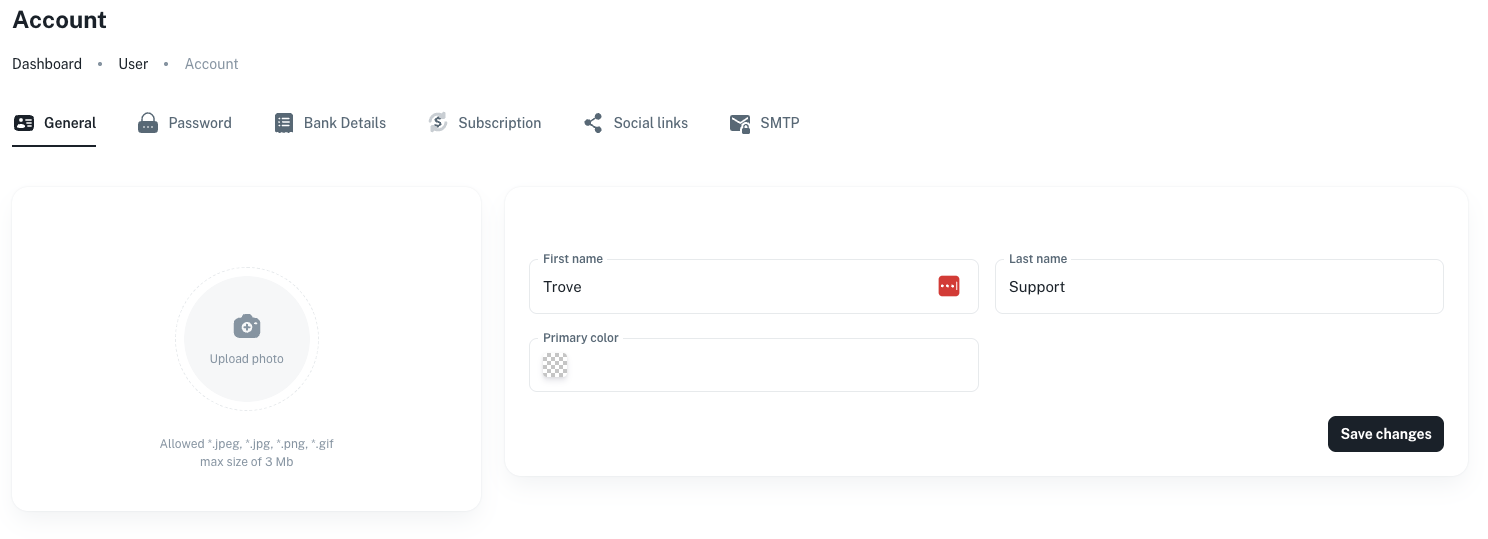
Here you can update these details and click save.
This will update your default branding.