(Legacy) How to Get API Credentials From Your Shopify Account
This guide is for our legacy integration with Shopify. Please use the new integration guide: How to integrate your Shopify account with Trove
To get the API credential for integration, you need to generate the Shopify API credentials first using your Shopify account.
Step 1
Visit the Shopify store where you want to connect and sync and click on settings in the bottom left.
Step 2
Next you want to go to your "Apps and sales channels" in the menu area.
Step 3
On the next page you would need to click on "Develop apps"
Step 4
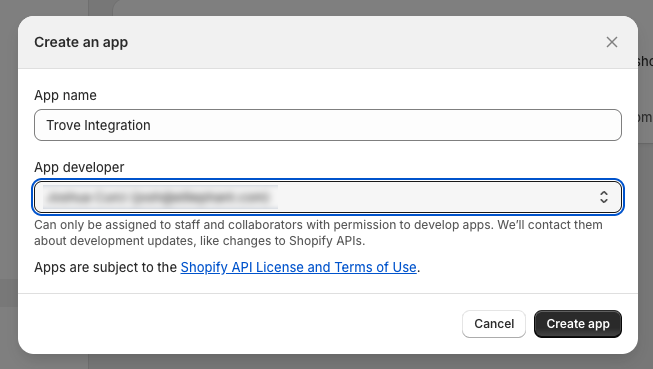
If this is your first app you will first need to authorise/enable your account to create the app. Once this is done you can create your first app by clicking "Create an app".
Step 5
Please fill in the required credentials i.e. App name and click on create app.
Step 6
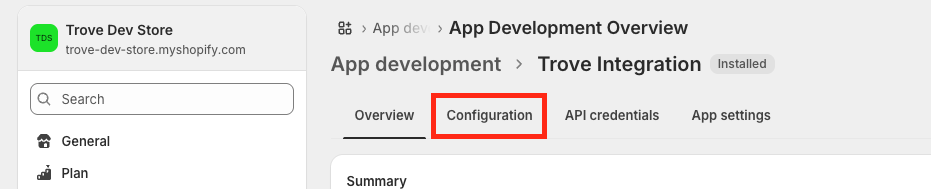
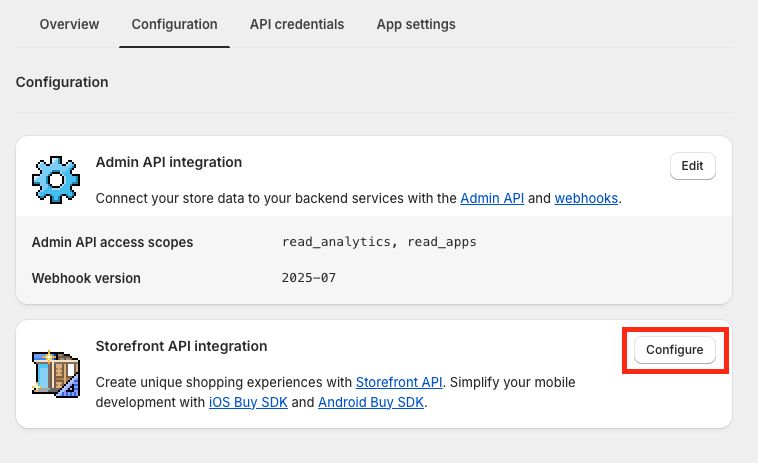
After creating the app, go to the configuration.
Step 7
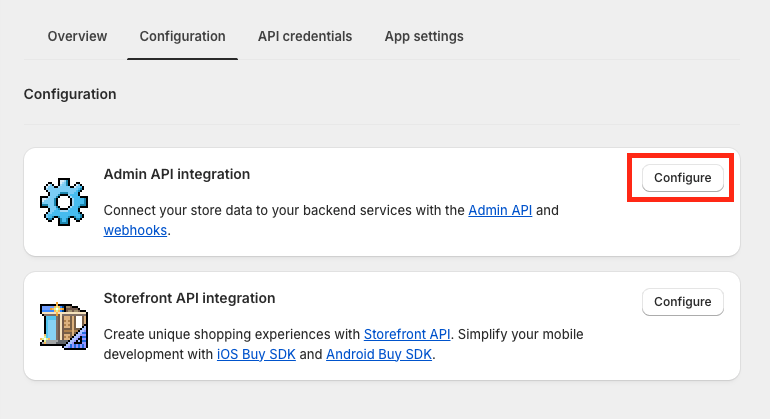
Click on "Configure" for Admin API Integration.
Step 8
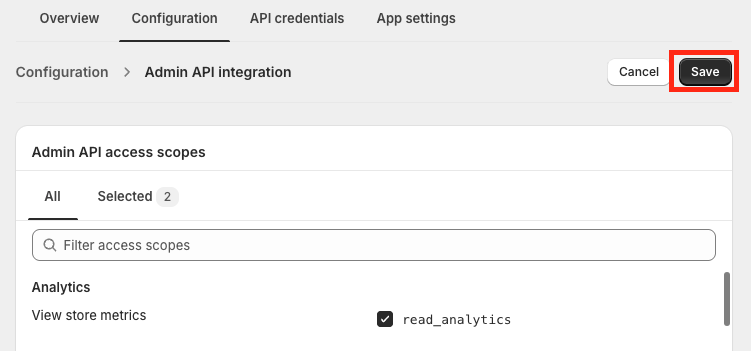
Here you will need to select the scopes that the application will need. Please ensure that you tick the following options:
read_products, write_products
read_inventory, write_inventory
read_orders, write_orders
write_order_edits, read_order_edits
read_fulfillments, write_fulfillments
After successfully filling in all the required permissions, click the "Save" button.
Step 9
Afterward, go back to the configuration tab and click to configure the Storefront API integration by clicking the "Configure" button.
Step 10
Here you will need to select the scopes that the application will need. Please ensure that you tick the following options:
unauthenticated_write_customers, unauthenticated_read_customers, unauthenticated_read_customer_tags
unauthenticated_read_product_listings, unauthenticated_read_product_inventory, unauthenticated_read_product_pickup_locations, unauthenticated_read_product_tags
unauthenticated_write_bulk_operations, unauthenticated_read_bulk_operations
After successfully filling in all the required permissions, click the "Save" button.
Step 11
Once these are both set you can now install the app by clicking "Install App" in the top right.
Step 12
From here you will be taken to the "API credentials" page where you will need to copy the following values to a text document for later use:
- Admin API access token
- Storefront API access token
- API secret key
The Admin API access token is available only once — please copy and save it in a secure place.
Step 13
Next is to get your API URL, this can be found on the same page just above the menu. The start will be different but it will always end in myshopify.com. Save this in the text doc as "Shop URL".
If the URL here is not ending in myshopify.com you can find the correct URL under the menu item "Domains" and then the item "Shopify-managed domain".
Step 14
Finally, as an optional step you can import only selected products by entering a "Collection ID". To get this ID:
- Go back to your Shopify admin, go to Products > Collections
- Click "Create collection"
- Enter a title and description for the collection
- In the Collection type section, click "Manual"
- Click "Save"
- In the Products section, search for products or click "Browse", and then add the products that you want to have in the collection
- To get the ID, go up to your URL bar in your browser — the URL will look something like
https://admin.shopify.com/store/52bd33/collections/451538649381. The collection ID is the number at the end, so for this example it is451538649381. Copy this into the text document as "Collection ID"
Once you have all of the following details in a text document:
- Admin API access token
- Storefront API access token
- API secret key
- Shop URL
- Collection ID (optional)
Follow How to connect your Shopify account to Trove to enter the details into the Trove platform.