How to integrate your Shopify account with Trove
Only the Shopify store owner can enable custom app development for the first time. Both creating the app (Steps 1–11) and installing it (Step 18) require the store owner or a staff account with the "Develop apps" permission (Settings → Users and permissions → your account). If one person builds the app and someone else finishes the connection in Trove, make sure that second person also has this permission - otherwise Step 18's install will be blocked even though everything up to that point worked.
To get the API credential for integration, you need to generate the Shopify API credentials first using your Shopify account.
Please read through this guide carefully and ensure that you are completing every step
If you have any issues with the integration please take a screenshot of the error and the app settings page and version page and send to support@gotrove.ai
Step 1
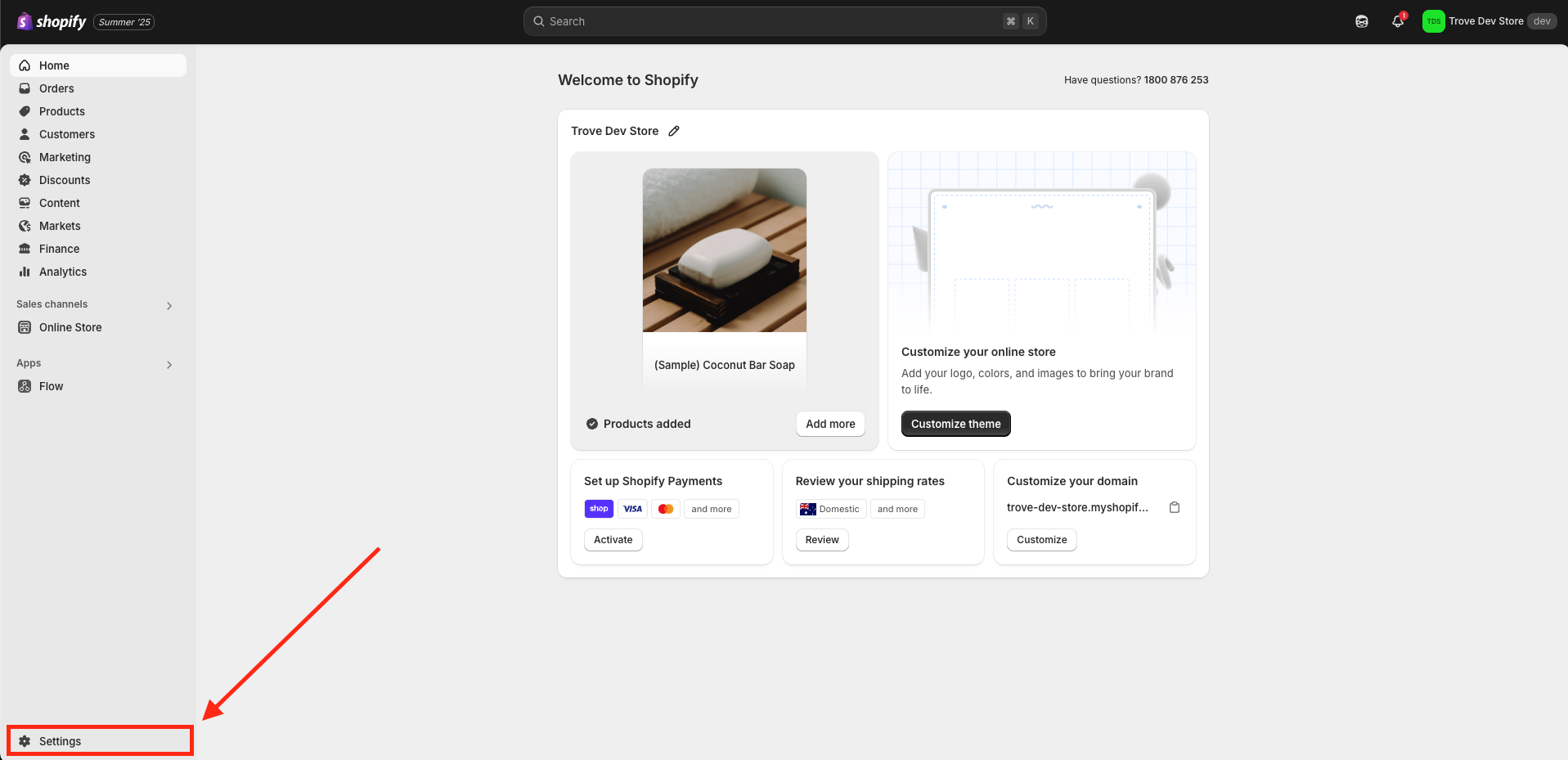
Visit the Shopify store where you want to connect and sync and click on settings in the bottom left.
Step 2
Next you want to go to your "Apps and sales channels" in the menu area.
Step 3
On the next page you would need to click on "Develop apps"
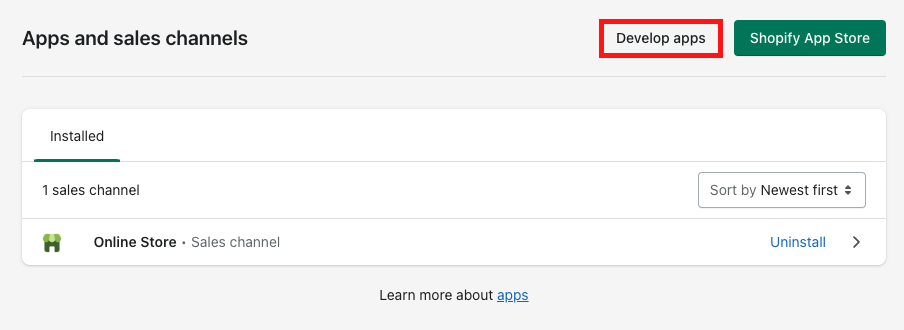
Please note: If this is your first app you will first need to authorise/enable your account to create the app.
Step 4
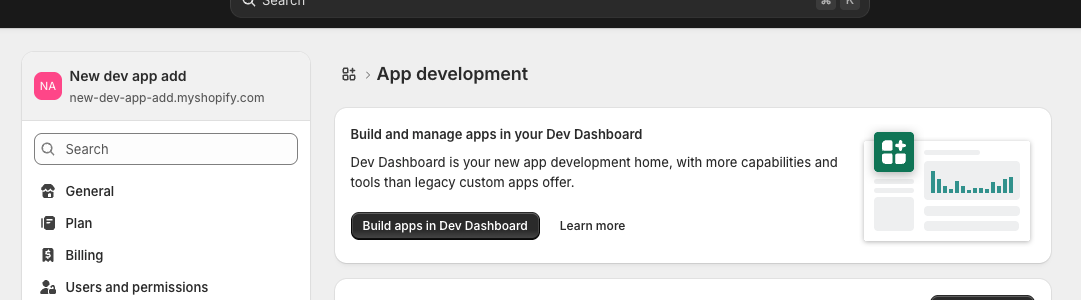
On the next section you want to click "Build apps in dev dashboard"
Step 5
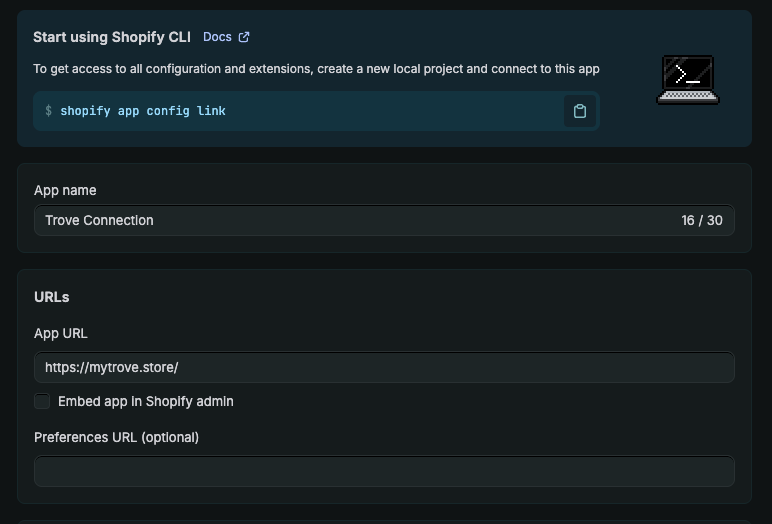
This will take you to the dev dashboard where you can create the app, you will see the following:
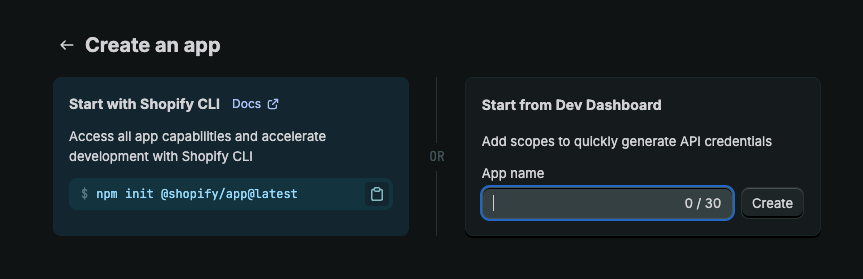
This is a name that only you will see so you can enter what makes sense for you, our recommendation is "Trove Connection" or "Trove Integration" and click create.
Step 6
Once you have created the app, it will then take you to the "Create version" page
On this page you want to first set the app url which should be https://mytrove.store/
Step 7
Next you want to make sure the option "Embed app in Shopify admin" is unticked
Step 8
Next is filling out the scopes, you can copy and paste the below:
read_validations,write_validations,read_channels,write_channels,write_checkouts,read_checkouts,read_customers,write_customers,read_fulfillments,write_fulfillments,write_inventory,read_inventory,read_locations,write_order_edits,read_order_edits,read_orders,write_orders,read_product_listings,write_product_listings,read_products,write_products,read_shipping,write_shipping
Once added it should look like this:
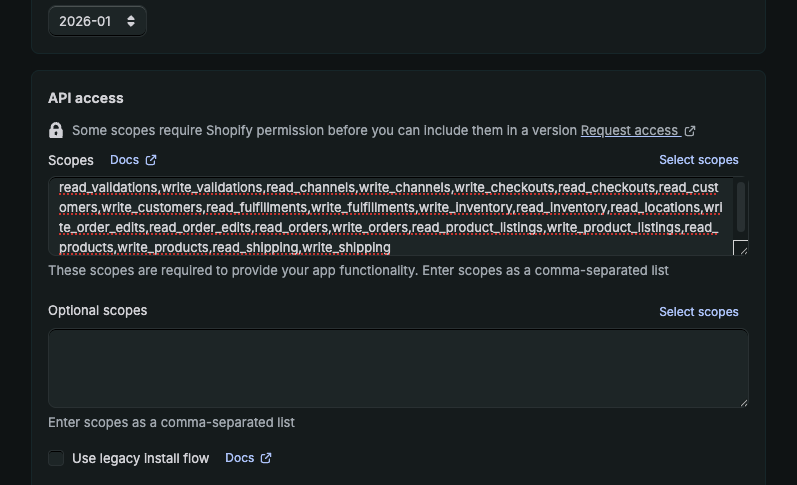
This goes into the scopes field and for full details of what these scopes do and are for can be found here
Step 9
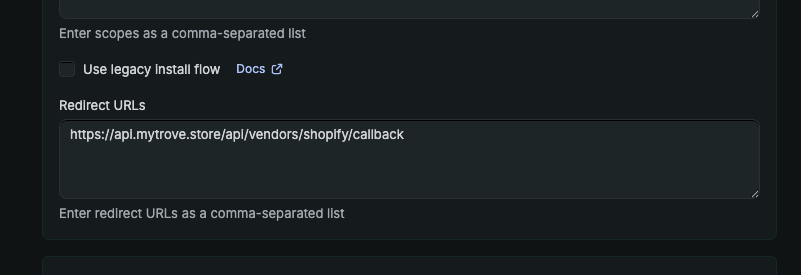
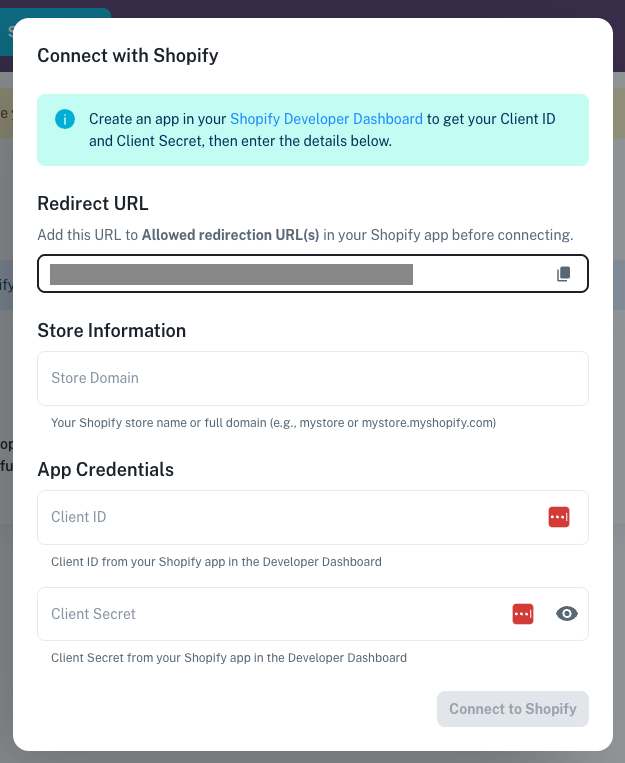
Next you want to add the following into the Redirect URLs field: https://api.mytrove.store/api/vendors/shopify/callback
So then it looks like this:
Step 10
Double check all fields and once all these details have been entered you can click "Release"
Step 11
Next we need to get your api details to enter into Trove, you can get these by going to "settings" in the side menu, this wil take you to your setting page with the credentials

You want to have these ready for the next step.
Step 12
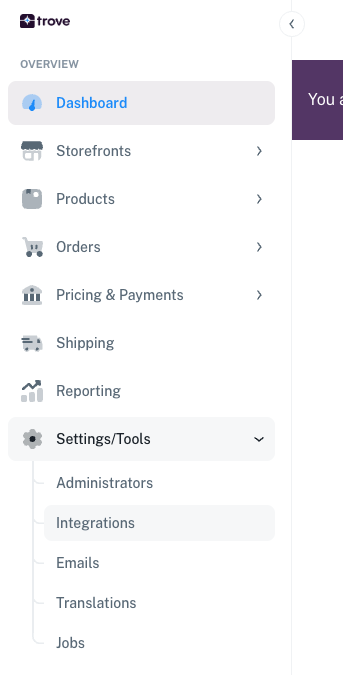
Once you have this set up you are ready to add the details in your Trove account, login to the admin of Trove and head to "Settings/Tools > Integrations"
Step 13
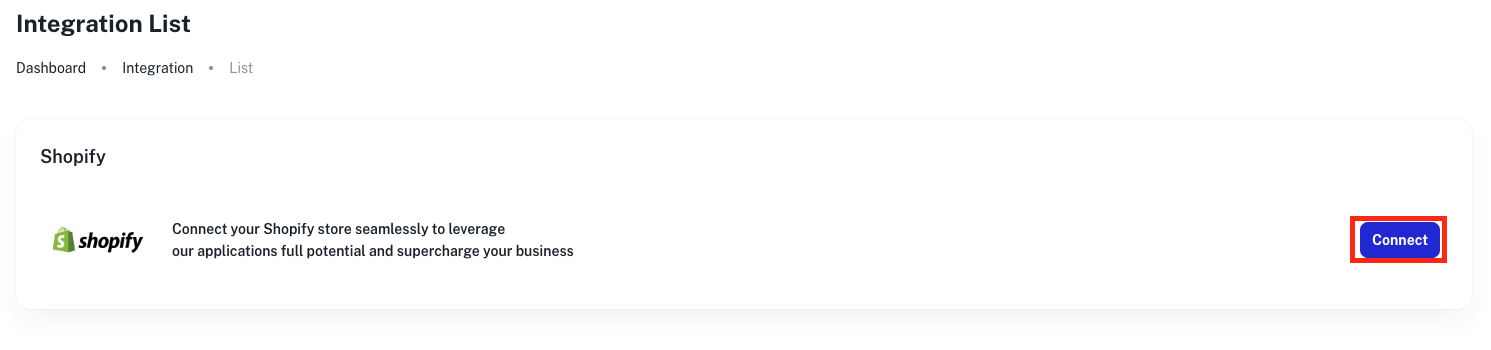
From there you will see the option to integrate with Shopify, you will now want to click on "Connect"
Step 14
You will then see a popup like the following to enter your details:
Step 15
Next step is to get the store domain, this can be found on your Shopify admin area just above the menu as outlined in the image below:
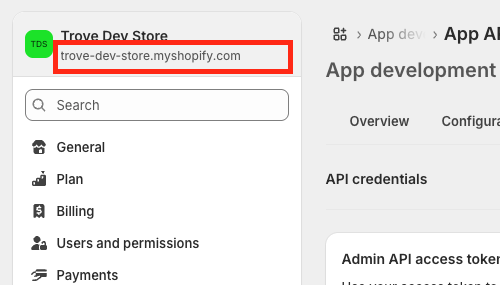
The start will be different but it will always end in myshopify.com. Save this in the text doc as "Shop URL"
If the URL here is not ending in myshopify.com you can find the correct URL under the menu item "Domains" and then the item "Shopify-managed domain".
Step 16
The next 2 fields (Client ID and Client Secret) are the information you had on step 11, just copy these values and add them in.
Step 17
Verify that all the information is correct and click "Connect to Shopify"
Step 18
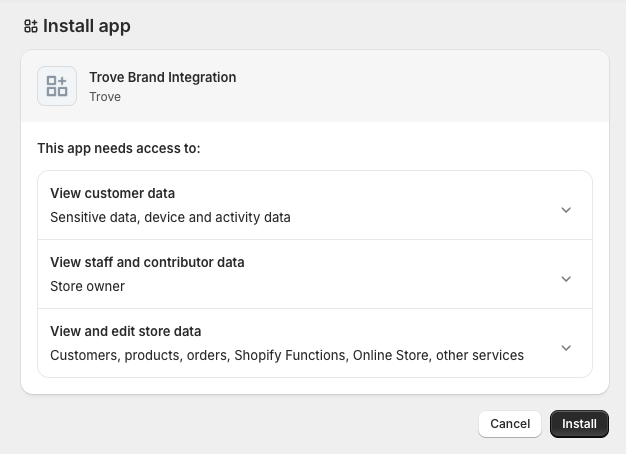
You will be redirected to verify the app, click "Install" and once you have completed the install you will be redirected back to Trove with your account connected
Your next steps are up to you, here are a few things you can do next before syncing your products:
- Use a collection of products instead of syncing all products: How to set up your sync to use Shopify Collections
- Updating your Shopify settings: Updating your Shopify sync settings
- Import your shipping rules: How to import your shipping rules from Shopify
- Checking your webhook status: Checking your Shopify webhook status
- Trigger your first product sync: How to manually trigger a Shopify product sync