How to add/update your social media links
To update your social media accounts, head to your profile icon in the top right of the page
In the dropdown menu select "Vendor Profile"
On this page you will need to click on the "Social links" tab
Once on this tab you can add in a new social link by clicking the button "Add new social"
You can then select the social network you want to add in
You can then select the social network you want to add in
You can add in as many of these links in as you like
Once you fill out the URL you can save the changes or if you need to remove one you can click on the little trash bin
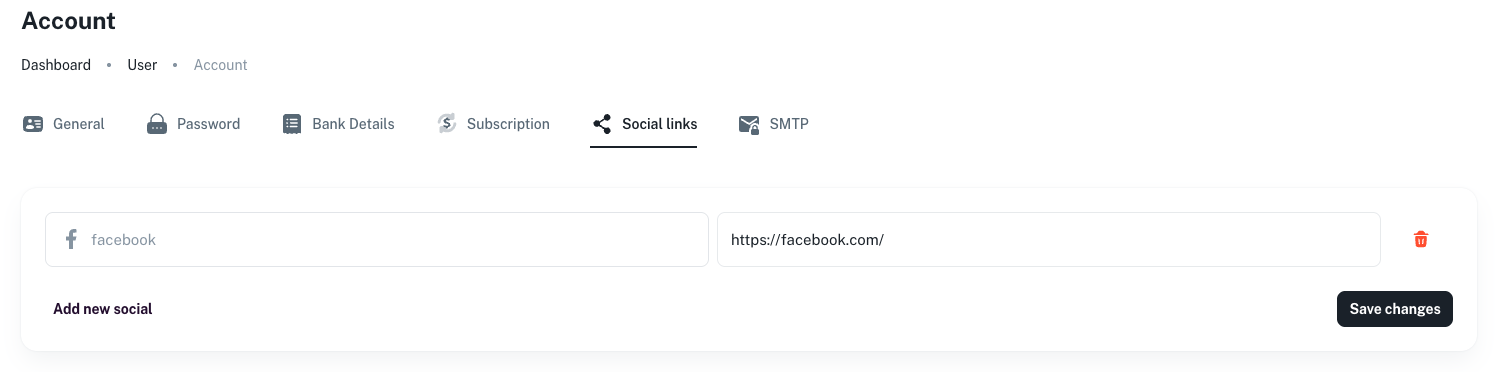
Once you fill out the URL you can save the changes or if you need to remove one you can click on the little trash bin
Related Articles
How to update your vendor details
When you are logged into the admin area you can update your vendor details from your primary branding and name to your social links and smtp details. Here is the full list of details that you can update: Vendor Branding Password Bank Details ...How to add/update your SMTP settings
To update your SMTP settings, head to your profile icon in the top right of the page In the dropdown menu select "Vendor Profile" On this page you will need to click on the "SMTP" tab From here you will need to fill out your SMTP details which are as ...How to update your password
If you are already logged into your account but would like to change your password you can do so by following these steps. To do the update, head to your profile icon in the top right of the page In the dropdown menu select "Vendor Profile" On this ...How to update your vendor branding
You can update the branding that you have for your vendor profile. This is also the default branding used for your emails from your site. The details you can update are as follows: Logo for your branding (Logo will be placed on a white background so ...