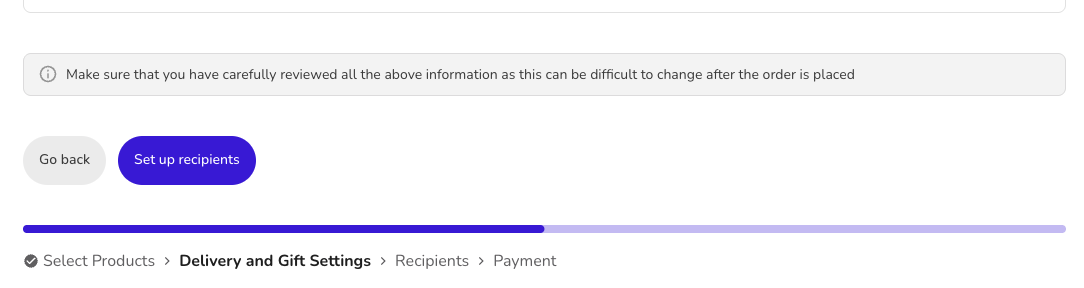
Display locations of your storefront info notes
When editing the storefront info notes in the admin area, here is a list of all the different options and where they display on your storefront.
These all display in grey info boxes as shown in the examples on the edit storefront settings.
Storefront Notes
These sit on the bottom of your storefront and only the main store page.
Checkout Notes
These notes display in various locations on the checkout page and through the "Delivery and Gift Settings" page.
Most sections will show in the area it is named after but here is the location of each of the notes.
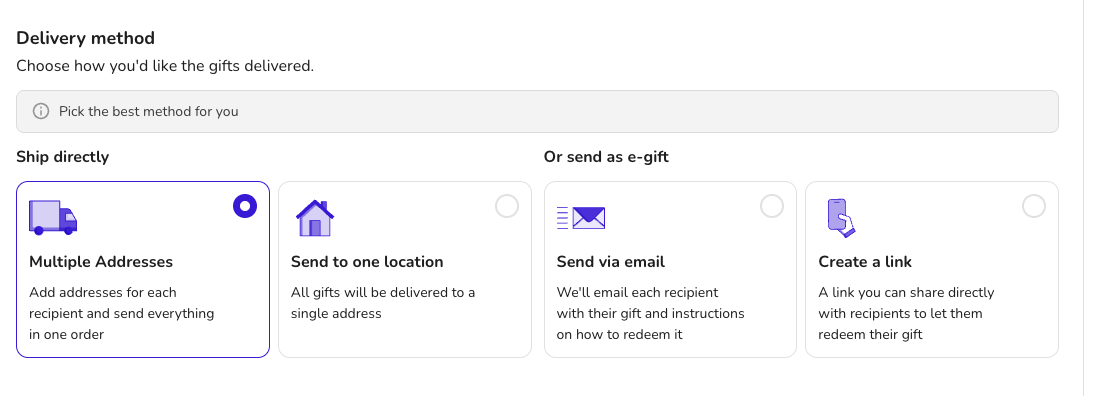
Delivery method note
This note shows in the delivery method section where the buyer picks the method they would like delivered.
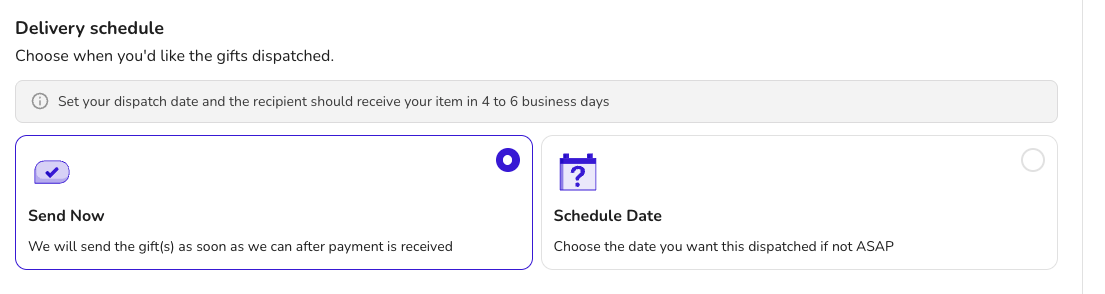
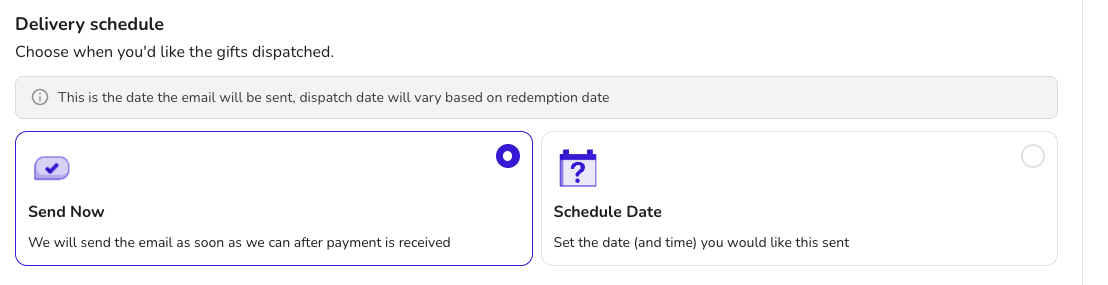
Delivery schedule note (Physical)
This note shows in the delivery schedule section but only if the buyer picks one of the "Ship directly" options (Multiple Addresses or Send to one location).
Note that this will only show if they have selected one of these options otherwise the "E-gift" version of this note will show.
Delivery schedule note (E-gift)
This note shows in the delivery schedule section but only if the buyer picks the "Send via email" option.
Note that this will only show if they have selected this option otherwise the "Physical" version of this note will show.
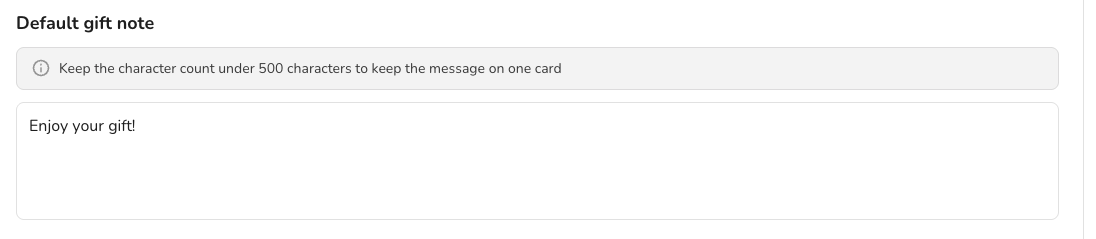
Default gift note
This shows in the default gift note section just above the input box.
This is available on all gifting methods.
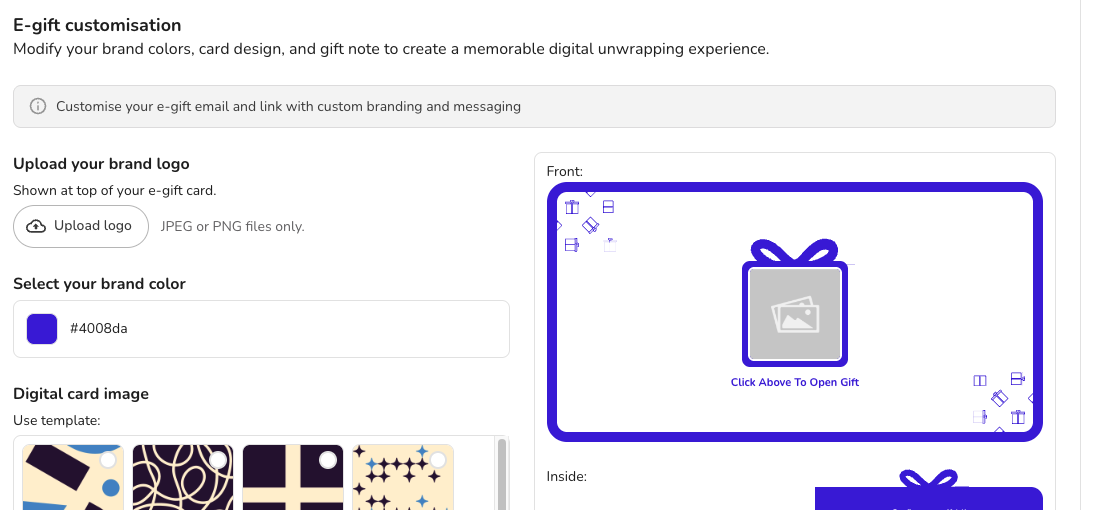
E-gift customisation note
This shows in the E-gift customisation section above the inputs for logo, brand colour etc.
This is only available for the e-gift methods (Send via email or Create a link) and is the same message for each option.
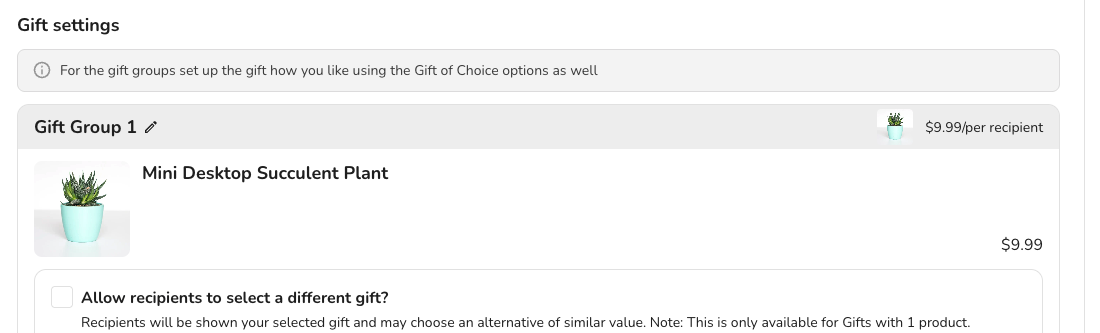
Gift settings note
This message only shows if the buyer picks the "Send via email" option and shows in the Gift settings section.
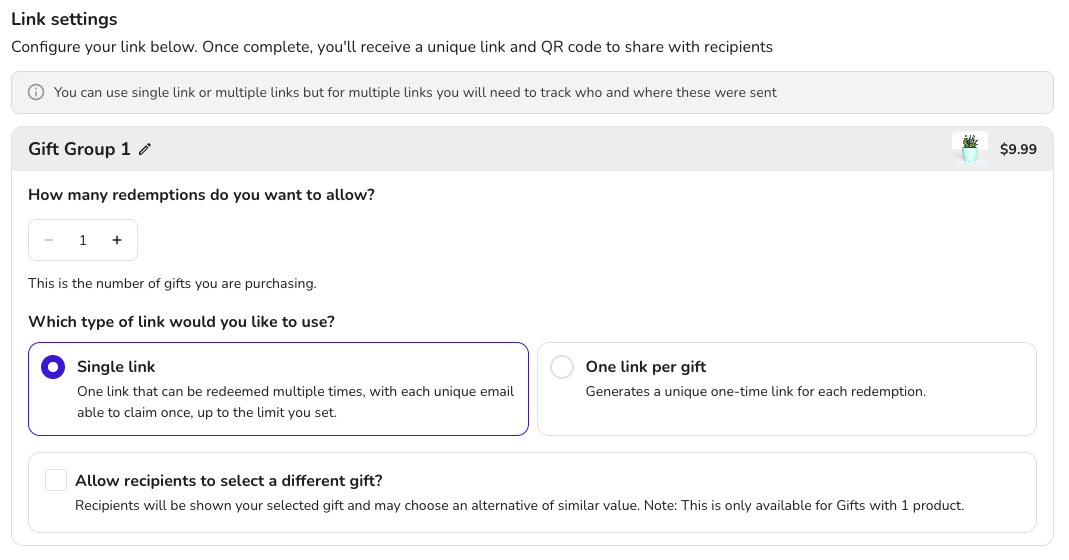
Link settings note
This message only shows if the buyer picks the "Create a link" option and shows in the Link settings section.
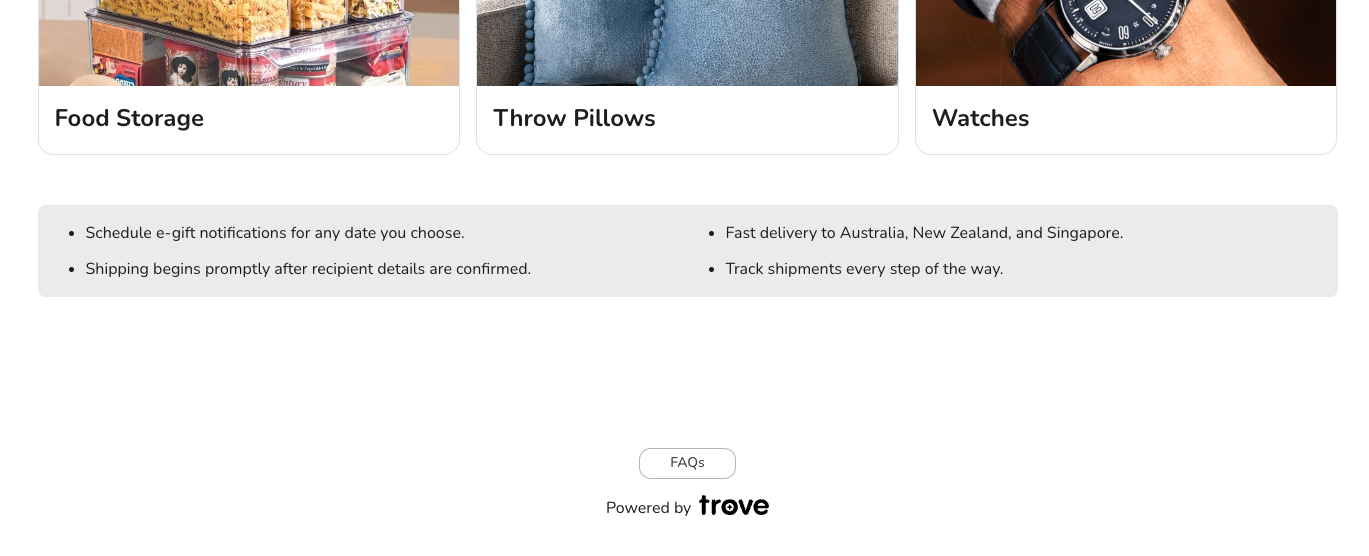
Page bottom note
This message shows on the bottom of the page on the checkout section and shows regardless of the method selected.
It can be seen above the "Payment" or "Set up recipients" button (button depends on previous options selected).