How to find your Trove issued storefront URL
For every storefront you will be issued a Trove based URL.
To get this URL you will need to go to the storefront listing page by clicking on the "storefronts" menu item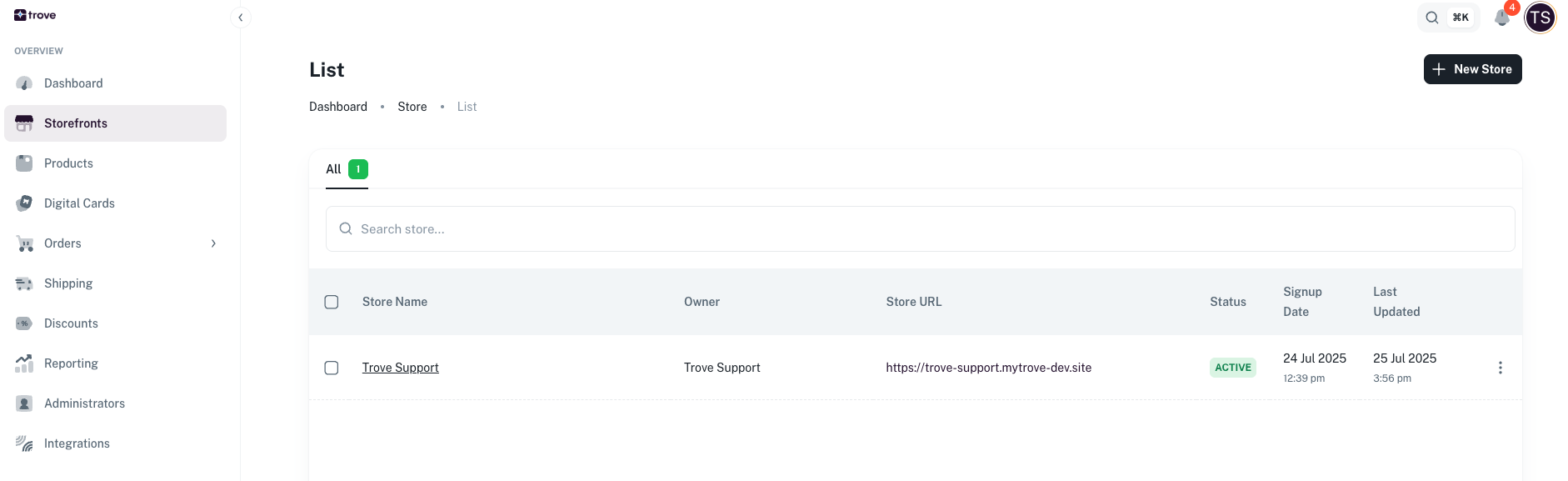
From here the URL can be found under Store URL
This is your Trove storefront URL that you can send your customers to
Related Articles
How to setup your custom URL
In Trove you can set up a custom domain or subdomain to point to your storefront. To do this you will need to enter the domain or subdomain against the storefront by heading to the storefront listing page From here you need to edit the store. Then ...Your storefront details
The base details you need for your storefront are as follows: Store name Store icon (This image should be square and will be used as the icon for the store. The logo will be used as the backup) Logo (Logo will be placed on a white background so if ...How to update a storefront
To update any storefront details you need to go to storefronts in the main menu Next you will need to click on the 3 dots and then edit From here you can edit the following details: Store name Locations Store Icon Logo Primary Color Secondary Color ...What are the Storefront Info Notes?
On your storefronts you have the option to have an info section for your buyers before they checkout. This info section is found at the bottom of the storefront here: You can update these at any time and can specify the notes on a per storefront ...How to create a new storefront
To create a new storefront you need to go to the list of storefronts here: Here you can see the list of your storefronts and to create a new one you just need to click on the option at the top called "New Store" You then have a few details to fill ...