How to setup your custom URL
In Trove you can set up a custom domain or subdomain to point to your storefront.
To do this you will need to enter the domain or subdomain against the storefront by heading to the storefront listing page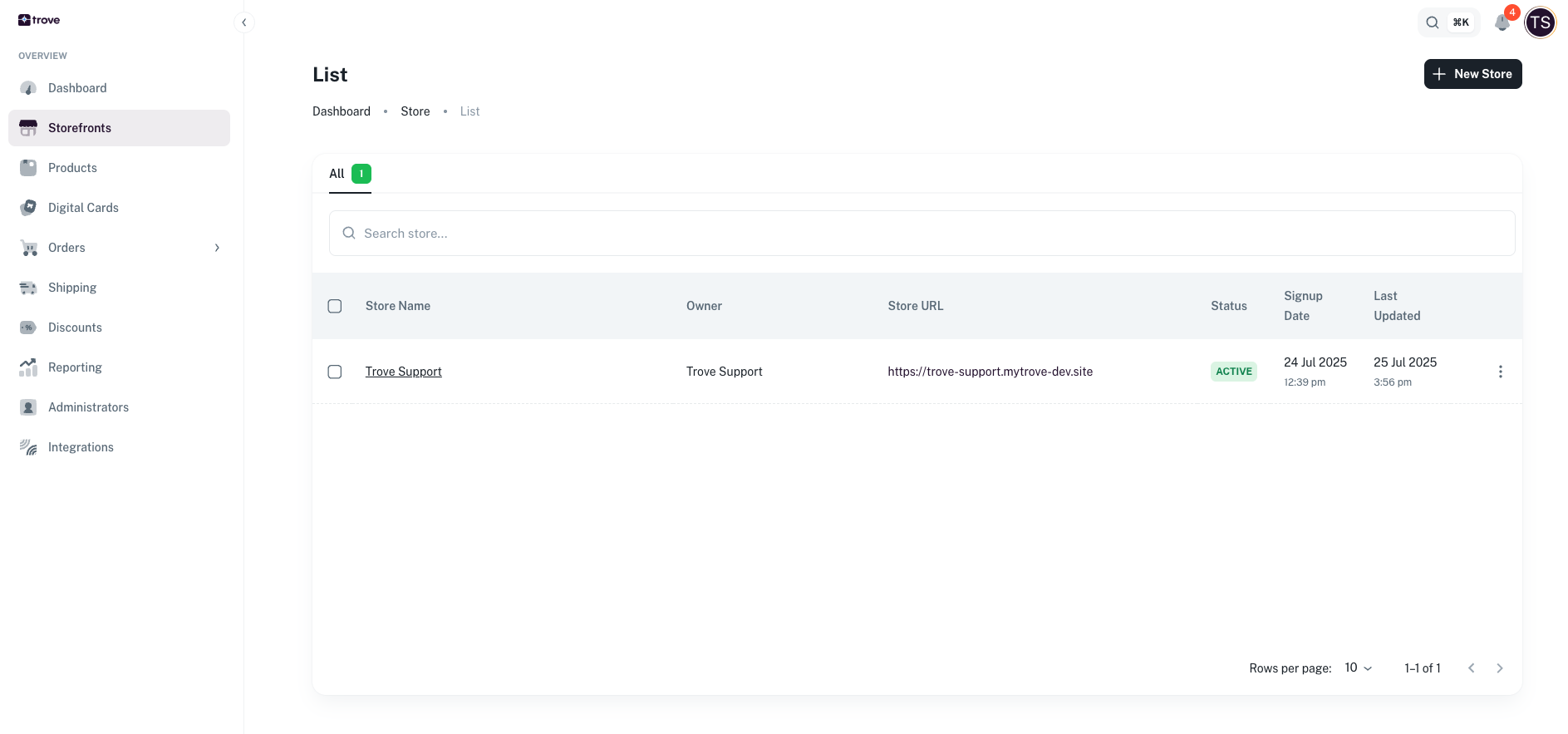
To do this you will need to enter the domain or subdomain against the storefront by heading to the storefront listing page
From here you need to edit the store.
Then from the edit form you need to enter in the domain into the "custom url" field
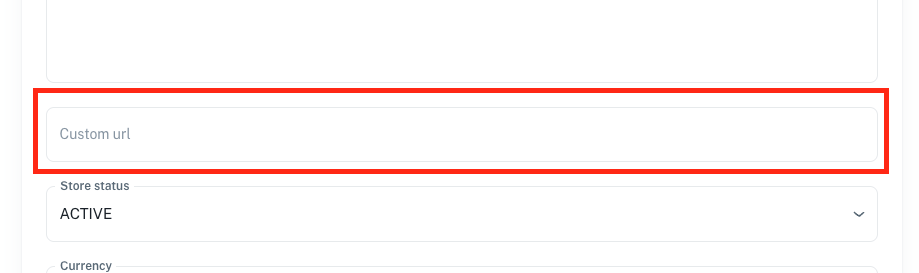
Then from the edit form you need to enter in the domain into the "custom url" field
Ensure that you enter in the domain without https:// or http://
So if the domain is https://gifting.gotrove.ai/ then just enter gifting.gotrove.ai
You also don't need to include www. either at the start.
So if the domain is https://gifting.gotrove.ai/ then just enter gifting.gotrove.ai
You also don't need to include www. either at the start.
Once you have done this, then next you need to request for a domain authorisation so that your domain is secure on our server.
To do this, send an email to support@gotrove.ai with the subject line "Domain authorisation for [your domain]" where [your domain] is the domain you entered in the previous step (eg gifting.gotrove.ai).
This will trigger the authorisation process and we will provide you with your 2 DNS records to update for this domain.
Once you have these DNS records you will then need to update your DNS records through your provider.
Once you have these DNS records you will then need to update your DNS records through your provider.
Once the DNS record is updated it will typically take 2 to 48 hours to be applied across the web.
You can then access the storefront by this domain.
Related Articles
How to find your Trove issued storefront URL
For every storefront you will be issued a Trove based URL. To get this URL you will need to go to the storefront listing page by clicking on the "storefronts" menu item From here the URL can be found under Store URL This is your Trove storefront URL ...How to update a storefront
To update any storefront details you need to go to storefronts in the main menu Next you will need to click on the 3 dots and then edit From here you can edit the following details: Store name Locations Store Icon Logo Primary Color Secondary Color ...Your storefront details
The base details you need for your storefront are as follows: Store name Store icon (This image should be square and will be used as the icon for the store. The logo will be used as the backup) Logo (Logo will be placed on a white background so if ...