How to reorder your Storefront Info Notes?
To update the info notes on your storefront you will need to be logged into your dashboard and go to "Storefronts" then "Info Notes"
From here you will see a list of your existing notes or an empty list
Providing that you have notes in this list there will be 6 dots on the left hand side
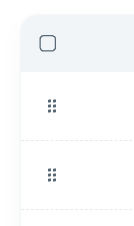
You can use these and drag and drop the notes to put them in the correct order
This will auto save once placed in the right order
Related Articles
What are the Storefront Info Notes?
On your storefronts you have the option to have an info section for your buyers before they checkout. This info section is found at the bottom of the storefront here: You can update these at any time and can specify the notes on a per storefront ...How to add new Storefront Info Notes?
To add in new info notes on your storefront you will need to be logged into your dashboard and go to "Storefronts" then "Info Notes" From here you will see a list of your existing notes or an empty list From here, to add a new note you will need to ...How to delete your Storefront Info Notes?
To delete the info notes on your storefront you will need to be logged into your dashboard and go to "Storefronts" then "Info Notes" From here you will see a list of your existing notes or an empty list From here, to delete a note you will need to ...How to update your Storefront Info Notes?
To update the info notes on your storefront you will need to be logged into your dashboard and go to "Storefronts" then "Info Notes" From here you will see a list of your existing notes or an empty list From here, to edit a note you will need to ...How to create a new storefront
To create a new storefront you need to go to the list of storefronts here: Here you can see the list of your storefronts and to create a new one you just need to click on the option at the top called "New Store" You then have a few details to fill ...